

This covers the "tabsetup" macro and how to use it.
1. The "tabsetup" Macro
This macro was created as a part of the original SWEHB. It is used in all SWE pages, most Topic pages, and many other pages. It is a method for presenting long pages in smaller pieces so the reader will not be overwhelmed by the length of a page.
The page is divided up using the Header Styles in the editor. The tabsetup macro itself has the ability to display up to 24 tabs across the page.
1.1 Insert The "tabsetup" Macro
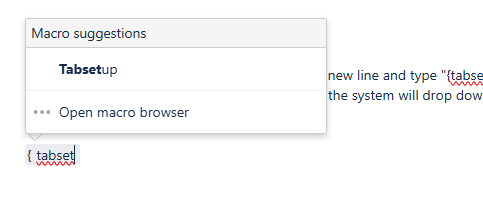 The easiest way to add the macro is to start on a new line and type "{tabsetup". The curly bracket tells the system that you are inserting a macro. Part way through typing the macro name the system will drop down a menu letting you select "tabsetup" as the macro to be inserted.
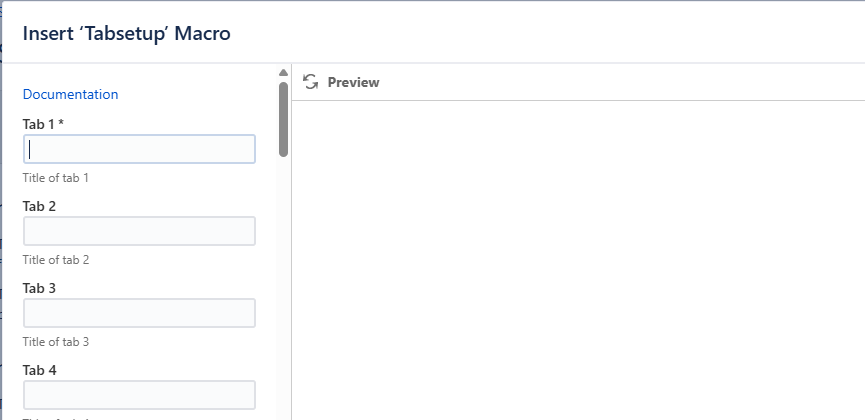 1.2 Add Tab Titles
The macro, in edit mode, shows the tab titles. Add as many titles as you need. These are normally numbered so you can keep track of the chunks of content by the Headers, which should also be numbered (see a typical SWE or Topic page).
1.3 Add Div Macros
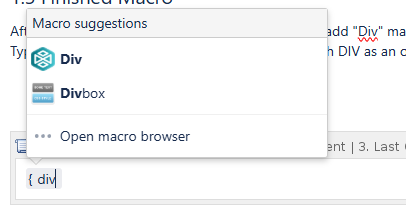 After you put in the titles in place, you will need to add "Div" macros. These are containers for content. Each is added like the tabsetup. Type "{DIV" and you will see a dropdown macro with DIV as an option. Click on it and the macro will be added to the page.
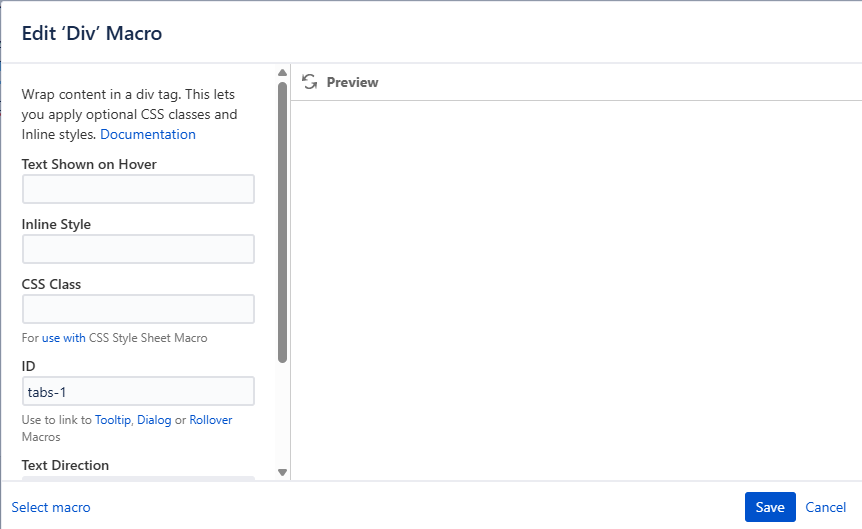
Each DIV will need to be identified with an ID. They are in the format "tabs-#" Numbering is sequential.
Save the Div and add a Div for each tab on your page.
If you are adding a div to an existing page, you will have to number it properly and possibly renumber other tabs and Divs so that the page content sections are all properly numbered and organized.
1.4 Finished Macro
View this page in "Edit" mode to see all the Divs in the tabsetup macro body.
 View this section on the website
 See edit history of this section
 Post feedback on this section

