bannerd

You are viewing an old version of this page. View the current version.

Compare with Current View Page History

« Previous Version 8 Next »

PATs in SWEHB were added in 2023. They are templates, mostly of checklists, that projects may use and adapt as necessary.  

SWEHBDOC PAT - Process Asset Templates In SWEHB

1.Design and Development

1.1 Definition of Process Asset Templates

Process Asset Templates are a natural evolution of guidance in SWEs and Topics. They typically start out as checklists, process step lists, document content structures, or other content and evolve into templates that can be used in project activities or as prototypes to be modified, tailored, and improved before being used in a project.

Process Asset Templates is a general category of pages. These pages include: 

  • Checklists - preformatted checklists to be used in some activity. Can be modified to suit a project's unique needs. 
  • Process Lists - lists of things that may be done in some specified order. Can be modified to suit a project's unique needs. 
  • Principles - a previously not numbered group of pages but are being included in this effort for consistency

A PAT will be numbered so that existing code in templates and macros for references and tools can be reused. The PAT number series will be included in the first 7 characters of the page title. 

1.2 Layout of PATs  

The PATs are developed and stored in the SITE space. This allows them to be used in all versions of the SWEHB. 

In SITE space

  • The SITE space is the location of the PAT Database. This is where the PATs are located. From this location, they will be available to all versions of the SWEHB. The container page is named “PAT Database” and it a child of the “Home” page of SITE.
  • The template for the “pat” is stored in SITE. This is used as the Live Template for creating PAT pages. See PAT-000 - PAT Template Page

More will follow as the PAT ToDo List is worked on. 

1.3 Initial Implementation of PATs

Unable to render {include} The included page could not be found.


2. Building a PAT

Building a PAT takes several steps. Each of these steps is described below. 

Each PAT needs to have a simple structure that can be used by project teams. To ensure this reusability aspect, Assets will be created and saved as Word, Excel, or other editable format, not as a PDF. 

Each should have a simple minimalist structure for the user to embellish as they see fit. Specifically: 

Standardizing the template includes the following items:

  • No logos or other Header information in the template. If a project wants that, they can apply it themselves.
  • Header block with the following items at a minimum:
    • Dates of use (example Audit Dates)
    • Project
    • User name (example: Auditors) – people filling out or using the template in the project
    • Some indicator for the version of the template. This can be version number or version date
  • Usage instructions – minimal instructions for the user when filling out / using the template
  • Table of checklist items, steps, or other list items with some form of
    • Col 1 - numbering system for the checklist
    • Col 2 - instruction or item 
    • Col 3 - acknowledgement of use (example Yes/No)
    • Col 4 - Comment area
    • Col 5 - Initials of the user (optional)
  • Other customizations are optional such as:
    • Heading styles
    • Colorizing table areas
    • Addition of summary or comment areas
  • Naming PAT item preparing it for attachment to individual PAT pages. examples
    • PAT-001 - FCA Checklist
    • PAT-002 - PCA Checklist
  • Each attachment is affixed to the appropriate PAT page
  • PAT pages are children of the PAT Database page under SITE:Home page
  • See "Add a New Pat" for instructions on building a PAT page. 

The easiest way to build a new PAT is to copy an existing PAT. By doing this you will avoid forgetting some seemingly minor feature and causing major problems. 

Make sure you have the following items ready for use: ;

  • Asset is ready to be attached to the new PAT - verify that it is in standardized format.  File name should not contain version coding. 
  • Screenshots of Asset have been prepared - one shot per page of the document. Image title should be the Asset Name, version code, and sequence number (if more than one shot). 

Perform the following steps: 

  1. Open the PAT Database in a new tab. 
  2. Review the existing PATs and make a note of the next unused PAT number. Do not reuse any retired PAT numbers. There are plenty of new numbers available after the last one in the database. 
  3. Open an existing PAT in a new tab. Initiate a copy command to create a new PAT. Alternatively, you can open the PAT-000 - PAT Template Page to get started. 
    1. Space and Parent page should not be changed. 
    2. Uncheck the "Include attached files and images" box - These will be added after the new page is created. 
    3. Click Copy to complete the action. 
  4. The new page is opened in Edit mode. Cleanup the new page: 
    1. Initially, the title will start with "Copy of", remove this. 
    2. Change the title to be the new PAT number followed by the name of the asset. 
    3. Delete any "Unknown Attachment" markers created by building the copy without the old attachments. 
    4. Save the new PAT. 
    5. Verify that the new page was created by looking at the PAT Database (refresh if necessary). 
  5. Attach the Asset and Screenshots to the new PAT. Drag and drop is a quick way to do that. See SWEHBDOC - Managing Attachments for more details.  
    1. For the asset, use the Properties option to add a Comment if you want to put version information for the attachment. Version information should not be built into the asset title.  
    2. Click on each of the attachments to ensure that the viewer opens and displays the file properly. 
    3. Right click on the attachment that is the actual PAT, select "Copy link address" this will store the link address in the past buffer in preparation for the next step. 
    4. Once you are satisfied that the attachments are all ready for use, go back to View Page. 
  6. Select "Edit Contents" to open the Live Template at the bottom of the page (embedded in a Show-If macro. Add the PAT attributes: 
    1. Link - paste the Link Address, from the past buffer in the previous step, into the Link data cell. 
    2. Title - provide the full name of the PAT - example: "PAT-999 New Asset"
      1. using the PAT number in the title ensure that the asset will not get confused with a non-PAT document. 
    3. SWE or Topic - Put in the appropriate codes for the pages on which this asset appears. Also includes codes for categories of which this asset is a member.
      1. All entries must be separated by a comma and a space. 
      2. Last entry ends with a comma and a space. 
      3. DO NOT ADD A CARRIAGE RETURN ("ENTER") AT THE END OF THE FIELD - this will corrupt the report filter. 
      4. for example: "SWE-999, Topic 9.88, AudCK, "
    4. Origin - Enter the code and location for the first use of this asset. Typically it is a SWE or Topic. 
    5. Notes - Enter any other information of interest about the asset. 
    6. Save the page and review the PAT in the PAT Database to
      1. verify that the information is visible
      2. view the "Reports for Asset Categories" and select the reports for which the asset should appear (entries in the SWE or Topic field) 
  7. Select "Edit" to configure the parts of the PAT page that will be displayed on other SWEHB pages. 
    1. In the Excerpt macro, ensure that the Hidden parameter is set to "true". This will hide the excerpt when the entire PAT is included in a SWEHB page. 
    2. Ensure that the text in the Excerpt body makes sense.
      1. Currently the text is set at "Click on the image to preview the file. From the preview, click on Download to obtain a usable copy."
    3. Check the Panel macro inside the Excerpt. Click on "edit" to change Panel parameters. 
      1. title should be the title of the asset, without the PAT number. It should match the title of the document that is in the document. 
      2. Border Color should be set to green. 
    4. In the body of the Panel, insert the image corresponding to the first page of the PAT. Use the "Insert Files and Images icon in the edit menu. 
      1.  Size of the image set to "800"
      2. Border should be set to "on"
      3. Link should be set to the PAT document attached to the page. 
      4. Image should be set to Centered on the edit menu. 
    5. Testing will be done later
    6. Below the excerpt macro is the balance of the page body. This will be displayed if included into a SWEHB page
      1. Ensure that the text in the page body makes sense. Currently the text is set at "Click on the image to preview the file. From the preview, click on Download to obtain a usable copy."
      2. Below the body text is the Panel macro containing all of the images of the PAT pages. This is used in instances where it is desirable to display the whole document on the SWEHB page. This panel is formatted identically to the panel in the excerpt. 
      3. In the body of the Panel, insert the image corresponding to the first page of the PAT. Use the "Insert Files and Images icon in the edit menu. 
        1.  Size of the image set to "800"
        2. Border should be set to "on"
        3. Link should be set to the PAT document attached to the page. 
        4. Image should be set to Centered on the edit menu.
        5. Continue these steps, adding the rest of the images 
      4. Save the page 
  8. Testing the PAT before using ensures that all parts of the page are working. 
    1. Use the page: PAT Test Page
    2. Test and fix problems until the test page performs as expected.
  9. You are now ready to deploy the PAT into SWEHB pages. 


Unable to render {include} The included page could not be found.


3. PAT Maintenance

3.1 Assets in a PAT

Every asset that becomes a Process Asset Template in SWEHB gets it's own page in the SITE space. From this location, the PAT can be: 

  • maintained under the version control afforded by Confluence, 
  • has certain standard formatting, as Word documents, Excel spreadsheets, PowerPoint presentations, etc.
  • made available to all versions of SWEHB by using the Include Page and Excerpt Include macros. 

3.2 PAT Life cycle

Each Process Asset Template goes through a life cycle where it is created, implemented in a SWEHB page, updated, and finally retired or replaced. 
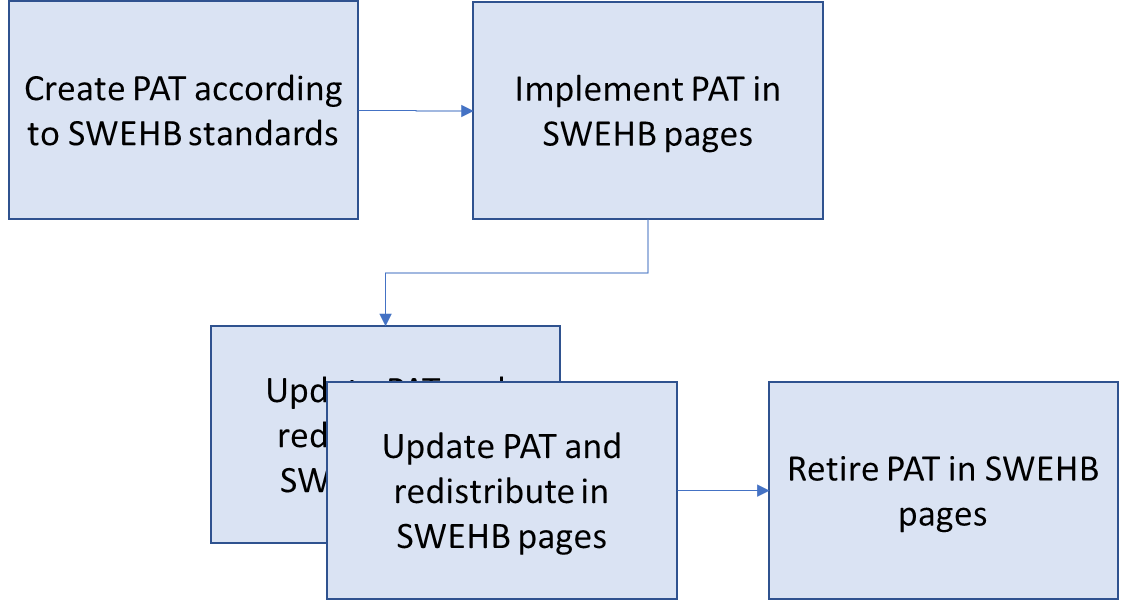
  1. Create a PAT according to SWEHB standards - May be a Word doc, Excel Spreadsheet, or other type of reusable format. 
    1. Must be stored in usable format, not a PDF. 
    2. Details in SWEHBDOC - Configuring an Asset as a PAT
  2. Implement PAT in SWEHB pages - See details below. 
    1. Create the PAT page in PAT Database.
    2. Manage the PAT page and attachments as described below. 
    3. Add links to the PAT in SWEs and Topics as appropriate including the associated "Related" pages for Activities. 
  3. Update PATs as necessary: 
    1. Update the PAT page in the Database.
    2. Update the attachments to the PAT Pages.
    3. Confirm that the appropriate attachment is displayed in the PAT page. 
  4. Retire a PAT:
    1. Move it from the PAT Database, and place it under the PAT Retired page.
    2. Open the PATs Page Information and go to each of the locations where is it listed as Incoming links or Outgoing Links and update those pages so they no longer point to the retired PAT.
    3. Add a note into the PAT Database detail stating why the PAT is retired. 
    4. Change the PAT by adding " - RETIRED" to the end of the title.

3.3 Configuring an Asset as a PAT


Each PAT needs to have a simple structure that can be used by project teams. To ensure this reusability aspect, Assets will be created and saved as Word, Excel, or other editable format, not as a PDF. 

Each should have a simple minimalist structure for the user to embellish as they see fit. Specifically: 

Standardizing the template includes the following items:

  • No logos or other Header information in the template. If a project wants that, they can apply it themselves.
  • Header block with the following items at a minimum:
    • Dates of use (example Audit Dates)
    • Project
    • User name (example: Auditors) – people filling out or using the template in the project
    • Some indicator for the version of the template. This can be version number or version date
  • Usage instructions – minimal instructions for the user when filling out / using the template
  • Table of checklist items, steps, or other list items with some form of
    • Col 1 - numbering system for the checklist
    • Col 2 - instruction or item 
    • Col 3 - acknowledgement of use (example Yes/No)
    • Col 4 - Comment area
    • Col 5 - Initials of the user (optional)
  • Other customizations are optional such as:
    • Heading styles
    • Colorizing table areas
    • Addition of summary or comment areas
  • Naming PAT item preparing it for attachment to individual PAT pages. examples
    • PAT-001 - FCA Checklist
    • PAT-002 - PCA Checklist
  • Each attachment is affixed to the appropriate PAT page
  • PAT pages are children of the PAT Database page under SITE:Home page
  • See "Add a New Pat" for instructions on building a PAT page. 

Attachments on PAT pages must be updated as new or updated assets are created. 

When an attachment is added,

  • Ensure that the asset name is spelled out fully, don't use abbreviations if possible, 
  • Don't include any version coding in the asset name. Embed the versioning code in the document Properties or in a Header in the document itself. Confluence has it's own versioning system that is independent of the title. 
    • You may use the "Comment" field in the attachments page to contain version information. 
  • Drag and drop the asset onto the appropriate box in the "Attach Files" area.
  • Use the Properties option to add a Comment to an attachment. The Comment can be used to contain the version information. 


When an asset is to be updated,

  1. Download the asset from the PAT page. 
  2. Make updates to the asset as necessary.
  3. Embed a version code into the document. Either as part of the Header of the document or in the document Properties (in Word, go to  File, Info, Properties, Comments.) 
  4. Save the document to your local drive. ensure that the filename has not changed. 
  5. Drag and Drop the asset onto the Attach Files section of the PAT page attachments.
  6. If you want to add a Comment to the attachment with version information do that now.  
  7. Verify that the file has been updated in the PAT page.

The Configuration Management features of Confluence will recognize that there is now a new version of the same document. View all the versions by clicking on the ">" to the left of the document attached to the PAT. You should see all the versions stored in the page along with any Comments that were added. 


3.4 Building / Updating PAT Pages 

The easiest way to build a new PAT is to copy an existing PAT. By doing this you will avoid forgetting some seemingly minor feature and causing major problems. 

Make sure you have the following items ready for use: ;

  • Asset is ready to be attached to the new PAT - verify that it is in standardized format.  File name should not contain version coding. 
  • Screenshots of Asset have been prepared - one shot per page of the document. Image title should be the Asset Name, version code, and sequence number (if more than one shot). 

Perform the following steps: 

  1. Open the PAT Database in a new tab. 
  2. Review the existing PATs and make a note of the next unused PAT number. Do not reuse any retired PAT numbers. There are plenty of new numbers available after the last one in the database. 
  3. Open an existing PAT in a new tab. Initiate a copy command to create a new PAT. Alternatively, you can open the PAT-000 - PAT Template Page to get started. 
    1. Space and Parent page should not be changed. 
    2. Uncheck the "Include attached files and images" box - These will be added after the new page is created. 
    3. Click Copy to complete the action. 
  4. The new page is opened in Edit mode. Cleanup the new page: 
    1. Initially, the title will start with "Copy of", remove this. 
    2. Change the title to be the new PAT number followed by the name of the asset. 
    3. Delete any "Unknown Attachment" markers created by building the copy without the old attachments. 
    4. Save the new PAT. 
    5. Verify that the new page was created by looking at the PAT Database (refresh if necessary). 
  5. Attach the Asset and Screenshots to the new PAT. Drag and drop is a quick way to do that. See SWEHBDOC - Managing Attachments for more details.  
    1. For the asset, use the Properties option to add a Comment if you want to put version information for the attachment. Version information should not be built into the asset title.  
    2. Click on each of the attachments to ensure that the viewer opens and displays the file properly. 
    3. Right click on the attachment that is the actual PAT, select "Copy link address" this will store the link address in the past buffer in preparation for the next step. 
    4. Once you are satisfied that the attachments are all ready for use, go back to View Page. 
  6. Select "Edit Contents" to open the Live Template at the bottom of the page (embedded in a Show-If macro. Add the PAT attributes: 
    1. Link - paste the Link Address, from the past buffer in the previous step, into the Link data cell. 
    2. Title - provide the full name of the PAT - example: "PAT-999 New Asset"
      1. using the PAT number in the title ensure that the asset will not get confused with a non-PAT document. 
    3. SWE or Topic - Put in the appropriate codes for the pages on which this asset appears. Also includes codes for categories of which this asset is a member.
      1. All entries must be separated by a comma and a space. 
      2. Last entry ends with a comma and a space. 
      3. DO NOT ADD A CARRIAGE RETURN ("ENTER") AT THE END OF THE FIELD - this will corrupt the report filter. 
      4. for example: "SWE-999, Topic 9.88, AudCK, "
    4. Origin - Enter the code and location for the first use of this asset. Typically it is a SWE or Topic. 
    5. Notes - Enter any other information of interest about the asset. 
    6. Save the page and review the PAT in the PAT Database to
      1. verify that the information is visible
      2. view the "Reports for Asset Categories" and select the reports for which the asset should appear (entries in the SWE or Topic field) 
  7. Select "Edit" to configure the parts of the PAT page that will be displayed on other SWEHB pages. 
    1. In the Excerpt macro, ensure that the Hidden parameter is set to "true". This will hide the excerpt when the entire PAT is included in a SWEHB page. 
    2. Ensure that the text in the Excerpt body makes sense.
      1. Currently the text is set at "Click on the image to preview the file. From the preview, click on Download to obtain a usable copy."
    3. Check the Panel macro inside the Excerpt. Click on "edit" to change Panel parameters. 
      1. title should be the title of the asset, without the PAT number. It should match the title of the document that is in the document. 
      2. Border Color should be set to green. 
    4. In the body of the Panel, insert the image corresponding to the first page of the PAT. Use the "Insert Files and Images icon in the edit menu. 
      1.  Size of the image set to "800"
      2. Border should be set to "on"
      3. Link should be set to the PAT document attached to the page. 
      4. Image should be set to Centered on the edit menu. 
    5. Testing will be done later
    6. Below the excerpt macro is the balance of the page body. This will be displayed if included into a SWEHB page
      1. Ensure that the text in the page body makes sense. Currently the text is set at "Click on the image to preview the file. From the preview, click on Download to obtain a usable copy."
      2. Below the body text is the Panel macro containing all of the images of the PAT pages. This is used in instances where it is desirable to display the whole document on the SWEHB page. This panel is formatted identically to the panel in the excerpt. 
      3. In the body of the Panel, insert the image corresponding to the first page of the PAT. Use the "Insert Files and Images icon in the edit menu. 
        1.  Size of the image set to "800"
        2. Border should be set to "on"
        3. Link should be set to the PAT document attached to the page. 
        4. Image should be set to Centered on the edit menu.
        5. Continue these steps, adding the rest of the images 
      4. Save the page 
  8. Testing the PAT before using ensures that all parts of the page are working. 
    1. Use the page: PAT Test Page
    2. Test and fix problems until the test page performs as expected.
  9. You are now ready to deploy the PAT into SWEHB pages. 


Unable to render {include} The included page could not be found.

Unable to render {include} The included page could not be found.

4. PAT Related Pages

This is a list of PAT related pages in SITE 

  • Checklists for PATsUse these checklists when building a new PAT or updating a PAT so you don't forget something. 
  • Full Detail PAT ReportsFull Detail includes all page codes. Useful for testing. 
  • PAT CategoriesThis page includes reports for all categories of PATs used in SWEHB. When all of the assets listed in PAT Checklists are put in the PAT Database, these reports will match the category groupings in PAT Checklists. 
  • PAT Categories - MTThis page includes reports for all categories of PATs used in SWEHB that have no PATs in them.  
  • PAT ChecklistsThis is a list of where the PATs fall in the various categories. See PAT Categories for reports that display assets from the PAT Database that are in each category. 
  • PAT DatabaseThis table includes Process Asset Templates from across the Handbook. 
  • PAT RetiredThis page is a container for PATS that have been retired. 
  • PAT Test PageUse this page to test a new PAT.
  • PAT ToDo ListThis is a quick list of PATs to be built, along with PATS that have been built. It is manually maintained. It includes a list of category codes and a full database report of existing PATs. 
  • Reports for Asset CategoriesThis page is a collection of reports for different groups of assets. It includes PageCodes and Category reports, SWE, Topic and Other reports.


  • No labels