

 View this section on the website
 See edit history of this section
 Post feedback on this section

- 1. Introduction
- 2. "reference" Template
- 3. "refstable" User Macros
- 4. Maintaining References
- 5. Quoting From References
- 6. Alternative using Excerpt Macro
- 7. Labels Used in SWEREFs
- 8. SWEREFs with Suffixes
- 9. SWEREFN Macro
1. Introduction
Explains how references are used and maintained in SWEHB.Any document, NASA document or external document, that is referred to in a SWEHB page is a reference.
Some references may not be directly called out in the text of the SWE page. These are "implied references.
1.1 Resources Tab in a SWE or Topic Page
All SWE pages, and most Topic pages, have a Resources Tab. This tab was originally a container for two types of resources: References and Tools. See the SWE-000 - SWE Template or 0.0 Topic Template for formatting information of this tab.
1.1.1 References Section
The References section contains a bullet list of documents mentioned in the page or appropriate to the content of the page. The following information is displayed for each reference:
- SWEREF# - a sequential number that is the database key for the reference in the References Table in space 7150
- Title - The formal title of the reference given by the author
- Link - The URL that points to a copy of the reference, available on the network. The link is embedded in the title and is displayed as blue color in the title.
- Citation - Author and Publisher information, may include the document number in the publishers library, also it can include the effective date and expiration date for the document.
- Notes - Any other pertinent information such as a location in the document containing the material of interest.
References are placed in this section through either the refstable macro set or using the Excerpt technique (see tabs on this page).
1.1.2 Tools Section
The Tools Table section was used for listing tools that may be appropriate for use with the SWE or Topic. Starting in NPR 7150.2C the tools list has been suspended and the tools database is no longer being maintained.
1.2 References Table
The References Table is a database of SWEREF pages that lives in the 7150 space. Each of the other SWEHB spaces has a References Table which displays its data from the 7150 space.
Each SWEREF page is built using the the "reference" live template. This is a User Created Template and is based on the "reference" template stored in the 7150 space under Templates in the Space Tools of the Dashboard.
2. "Reference" Template
The "reference" template is part of the User Templates in the Confluence installation. It uses the Scaffolding Plugin to create data variables and capture values for these variables. A User Created Template called "reference" is stored in the 7150 space. It is this template that is used in SWEREF pages to define the data to be captured.
2.1 Source Code
The Source Code for this template is in Wiki Markup language:
| Link \\ {small}Leave blank if none exists{small} | {show-if:action=edit}{text-data:Link | width=600px | height=100px | type=area}{text-data}{show-if}{show-if:action=view}{div:style=width:500px;word-wrap:break-word;}{report-on:injected=true}
<a href="https://swehb-pri.msfc.nasa.gov/%data:Link%" class="external-link" rel="nofollow">%data:Link > first 600%</a> {report-on}{div}{show-if} |
| Title \\ {small}This is the text which will be hyperlinked, if a link exists{small} | {text-data:Title | width=600px | height=100px | type=area}{text-data} | SWE or Topic | {show-if:action=edit}{color:red}Formatting: \\ For SWE, use SWE-xxx \\ For Topic, use Topic 7.xx{color} \\ {show-if}{text-data:SWE | width=600px | height=100px | type=area}{text-data} |
| Citation \\ {small}This contains additional information, which will appear after the title, separated by a comma{small} | {text-data:Citation | width=600px | height=100px | type=area}{text-data} |
| Notes \\ {small}More specific directions where to look in the resource for relevant content{small} | {text-data:Notes | width=600px | height=100px | type=area}{text-data} |
Example Reference as it will appear to end user:
# [Title|http://www.nasa.gov], Citation
where:
* Title = Title
* Link = http://www.nasa.gov
* Citation = Citation
| Link \\ {small}Leave blank if none exists{small} | {show-if:action=edit}{text-data:Link|width=600px|height=100px|type=area}{text-data}{show-if}{show-if:action=view}{div:style=width:500px;word-wrap:break-word;}{report-on:injected=true}
<a href="%data:Link%" target="_blank">%data:Link > first 600%</a>
{report-on}{div}{show-if} | | Title \\ {small}This is the text which will be hyperlinked, if a link exists{small} | {text-data:Title|width=600px|height=100px|type=area}{text-data} | | SWE or Topic | {show-if:action=edit}{color:red}Formatting: \\ For SWE, use SWE-xxx \\ For Topic, use Topic 7.xx{color} \\ {show-if}{text-data:SWE|width=600px|height=100px|type=area}{text-data} | | Citation \\ {small}This contains additional information, which will appear after the title, separated by a comma{small} | {text-data:Citation|width=600px|height=100px|type=area}{text-data} | | Notes \\ {small}More specific directions where to look in the resource for relevant content{small} | {text-data:Notes|width=600px|height=100px|type=area}{text-data} | Example Reference as it will appear to end user: # [Title|http://www.nasa.gov], Citation where: * Title = Title * Link = http://www.nasa.gov * Citation = Citation2.2 Use in SWEREF page
Create In a SWEREF page using the naming convention SWEREF-999. The page should be a child of the References Table page in the 7150 space,
The easiest way to create a new SWEREF page is to:
- Open an existing SWEREF page (the one with the highest number in the active range in the References Table ).
- Use the Copy command to create a copy under the References Table page.
- When the copy of the page opens, immediately change the title to:
- remove "Copy of"
- change the number to be the next number in the series
- clear out all data from the previous SWEREF
- Save the new page.
- Verify that the page is saved and that the structure of the SWEREF is displayed in the table of the page.
- Data values of the variables should all be blank at this point.
"Edit" the new page and you should see the Live Template macro as the only thing on the page. The "reference" template is initiated by the "Live Template" macro. The parameters of the Live template are:
- Type: template
- Template: reference
After saving the page. select "Edit Contents" from the page menu. This triggers the Scaffolding Plugin to organize the data elements in the page based on the structure described in the "reference" template code. You will be able to provide data for:
- Link - use a fully qualified URL
- Title - This text will become the text for the URL link above. It is the title of the reference assigned by the author
- SWE or Topic - This is a comma delimited list of pages where the reference is used.
- SWE-999 - is the format for SWE pages. It comes from the first 7 characters of the SWE page title
- Topic 9.88 - is the format for most Topic pages. Most topic pages are grouped into a single digit top-level, followed by a two digit sequence number. It comes from the first 4 characters of the topic page title.
- p99 - Principle page code. Assigned to Principles pages.
- xxxx - other codes used for document content pages.
- Citation - this is a text field and may contain one or more of the following:
- Author(s),
- Publisher,
- Publisher's document Identification number,
- Release date,
- Effective date,
- Expiration date,
- Notes - Any other pertinent information such as a location in the document containing the material of interest.
3. "refstable" User Macros
There are several User Macros that are used to display references is the Resources tabs of SWEs and Topics. Each one is designed for a certain type of page:
- refstable - used for SWE pages. It takes the first 7 characters of the SWE page to calculate a search key. The search key is used to search in the References Table pages to select SWEREFs that contain the search key anywhere in the Affiliated SWE field of the page. The selected pages are then sorted by SWEREF# and displayed as a bulleted list.
- refstable-into - Used for references in the Introduction page only. The key "Intro" is hard coded in the macro.
- refstable-topic - Used for Topic pages. It takes the first 4 characters of the Topic page to calculate a search key. The search key is used to search in the References Table pages to select SWEREFs that contain the search key anywhere in the Affiliated SWE field of the page. The selected pages are then sorted by SWEREF# and displayed as a bulleted list.
- Other classes of pages have hardcoded reference table reports. These codes are being phased out in favor of using SWE or Topic codes.
Including:- Doc Page Resources - reports of references hardcoded by document type
- Ref Reports - reports of references hardcoded by Principle. Stored under the Topics/Principles/Ref Reports page.
3.1 Codes used in Affiliated SWE
The codes used in the "Affiliated SWE" parameter determine what page a SWEREF will appear on. All codes are specifically formatted so that the reporting macros can work properly.
The codes are used by the reporting macros are:
| Code Format | How Used |
|---|---|
| SWE-999 | This is the seven character code at the beginning of all requirement pages (SWE and HR). It is used in conjunction with the "refstable" macro. In the case of HR pages, the title of the page is padded with spaces if necessary to get 7 characters. The code in the SWEREF is similarly padded. |
| Topic 9.99 | This code is used by all topic pages. the topic page has a 4 character code in the title. The SWEREF must have "Topic" before the 4 character code. |
3.2 Other Codes
Some codes were used in the SWEHBVB space for certain pages. These pages all use a specially formatted report page to build the References table for the page. These codes are being phased out as topic numbers are added to the titles.
All of these codes may be moved to the end of the parameter.
The last entry in the Affiliated SWE parameter must be a comma followed by a space and NO RETURN AT THE END OF THE PARAMETER. If a "return" or "enter" is added to the end of the parameter it sill cause the report filter to miss entries and the SWEREF will not appear on some pages.
Codes are listed below:
| Code | Doc Page | Report Page |
|---|---|---|
| CR-PR | CR-PR - Software Change Request - Problem Report | MC CR-PR |
| CSIP | ||
| IDD | ||
| Inspect | ||
| Maint | ||
| Metrics | ||
| Safety | ||
| SAP | ||
| SCMP | ||
| SDD | ||
| SDP | ||
| SRS | ||
| STP | ||
| STR | ||
| SUM | ||
| SVD | ||
| SwDD | ||
| Test | ||
| Train | ||
| SASTATUS | This code used in SWEHBVC and SWEHBVD - Report is in SITE | |
| FAQ | This code used in SWEHBVC and SWEHBVD - Report is in SITE | |
| SAANALYSIS | This code used in SWEHBVC and SWEHBVD - Report is in SITE | |
| SADESIGN | This code used in SWEHBVC and SWEHBVD - Report is in SITE |
4. Maintaining References
A Reference may be displayed in many pages of the Handbook, but all of those displays come from the same place, the SWEREF page. When References are contained in a SWEREF page, there is only one place to make updates to a reference.
Reference documents come from many places. They may be in NODIS or another NASA server, or even a server on the internet outside of NASA control. When a document is updated by its authors, access to the older version may not be possible. There are two situations that could exist:
- Only the new document is available
- Both the New document and the old document are available
4.1 Only New Document Available
In these cases, you may use a link that got you to the old document only to find that it gets you the new document. This is typically done through some slight of hand known as a "redirect". You use the old link, to the old document, and the server you are querying redirects your request to the page containing the new document. The good part of this is, you didn't even have to update the link to get the right document. The bad part of this is that when the document is updated a second time, the old redirect no longer works and you get no document.
Here is an example using a document from NODIS. In this example, the document was updated from "NPR 8000.4B" to "NPR 8000.4C". When the old link was used to access it, the New document came up due to the redirect. Notice the "4B" in the URL and the "4C" on the page containing the document.
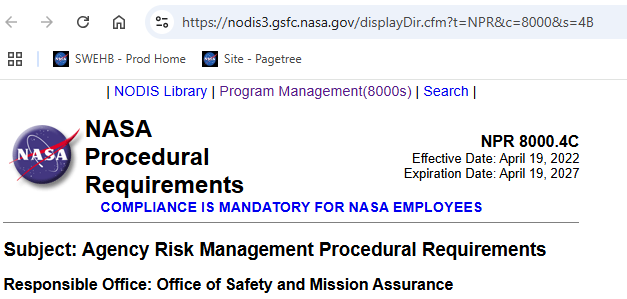
You will want to fix the URL on the SWEREF so that you call the proper document and not rely on the redirect to get the current document for you. Click on the breadcrumb "Program Management(8000s)" to go back to the listing of all 8000 series documents on the server.
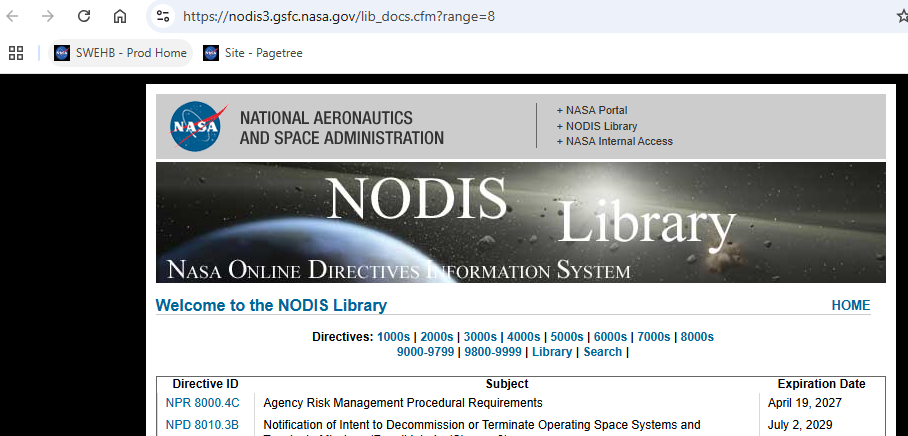
In this case, the document you want is the first one on the list: NPR 8000.4C. When you click on that link you get to the proper current page. In the screenshot below the URL and the document both show as "4C".
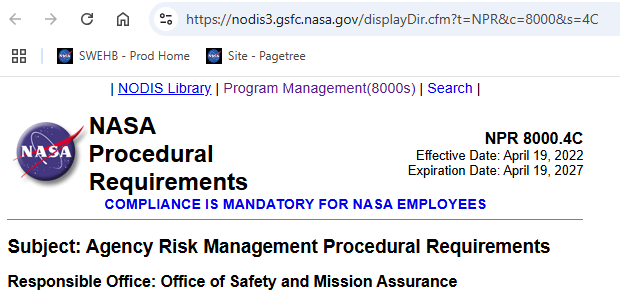
Now you have the most current copy of the document and a URL that gets you to it. You should use the new URL to update the SWEREF to point to the new document.
4.2 Both New And Old Documents Are Available
In this case, the old URL gets you to the old document. You may have to do some hunting around to find a new link to the new document. Once you find it you will need to update the SWEREF with the new URL to get the new document. It is always best to use the most current document in a SWEREF.
You can save the old URL and put it onto the Notes section of the SWEREF along with a comment about using the old URL to get to an old copy of the document.
5. Quoting From References
For additional details see SWEHBDOC Quotes in SWEHB.
Explains how quotes are used and maintained in SWEHB.
Any document, NASA document or external document, that is referred to in a SWEHB page may have a quote taken from it and included in the SWEHB page. Quotes must be properly cited and attributed to the author.
Short / Simple Quotes
Short quotes vary from a few words to a short sentence. They are included in-line in the text of a page in the traditional fashion. They are introduced by stating where the quote comes from (title of the reference), and then the quote itself in traditional quotation marks. If a reference is updated and possibly rewritten, some quotes are changed and may not be found verbatim in the updated version of the reference.
Long Quotes
Long quotes vary from long complex sentences, to strings of sentence fragments (separated with ellipses) to a paragraph or more. These quotes are set apart from the rest of the text in the page in a special form. they are also documented in a special way so that they can be verified when the source reference is updated.
6. Alternative using Excerpt Macro
In the event that the "reference" template is broken and cannot be repaired, The following can be recovery can be used.
6.1 Recover SWEREF Data
The SWEREF Recover Spreadsheet contains all the SWEREF data from the References Table. It contains data for :
- Link
- Title
- Affiliated SWEs, topics and other codes
- Citations
- Notes
The spreadsheet will be updated quarterly and stored as an attachment to this page.
6.2 Build Replacement
Each SWEREF page will be reused and rebuilt if the live template "reference" is broken.
On each page perform the following steps:
- Remove the live template for "reference" - if is is broken, it is of no further value.
- Add an Excerpt macro at the top of the page.
- In the Excerpt macro configure the following body as a single bullet:
- Title (as a link using the link data), Citation, Notes
- Make the Excerpt display (not hidden)
- Rebuild each page on which the SWEREF should appear (Affiliated SWEs)
- In the references section, add a Excerpt-Include macro pulling in the excerpts from each SWEREF that belongs in that page.
- Once all the SWEREFs are loaded for the page, move on to the next page. Do this for all spaces (7150, SWEHBVB, SWEHBVC, SWEHBVD, SITE):
- all SWEs
- all Topics
- all main pages such as Introduction
- Add in the SWEREF page, the list of pages on which the SWEREF is published. This will help when updating references in the future. The "Page Information also contains a list of the pages which reference the SWEREF page.
7. Labels Used in SWEREFs
The following labels are used in SWEREFs for grouping.
| Code | Use |
|---|---|
| refprob | reference that has a problem needing resolution such as missing link, |
| llis | Lesson Learned database Item |
| txt | |
| npr | NASA Procedural Requirements document |
| test | used for grouping SWEREFs as a part of testing features |
| npd | NASA Procedural Document |
| mt | Empty reference - may be reused |
| release | |
| tp | Technical Paper - from a NASA internal source or external web site |
| tng | Training materials |
| cos | |
| hdbk | NASA Handbook |
| pa | Process asset. Typically from a Center. The Center code may also be included as another label |
| msfc, gsfc, arc jsc, ksc | Center Codes used to identify SWEREFs from certain Centers |
8. SWEREFs With Suffixes
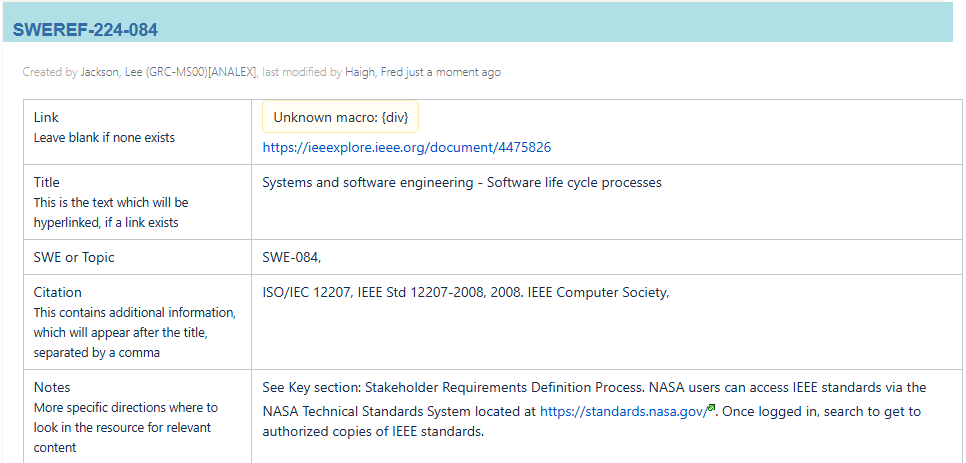
Some SWEREFs in the table have a suffix associated with them. Here is an example of SWEREF-224 having two entries.
Both link to the Systems and software engineering - Software life cycle processes" document.
- The Note in SWEREF-224 just has a Note regarding how users can get a copy of the document. It is associated with many SWEs and Topics but NOT SWE-084.
- The Note in SWEREF-224-084 has a Note that includes an additional statement, "See Key section: Stakeholder Requirements Definition Process." It is associated with only SWE-084.
8.1 How Suffixes Work
When you build a SWEREF, one key aspect is the "SWE or Topic" field. This is a list of all the pages (by page code) where the SWEREF is to be included. All those pages get the same information about the SWEREF like Link, Title, Citation and Notes. If you want one target page to get a different Note, you have to build a second SWEREF, with a unique suffix, to contain all the same information as the original SWEREF, but with a different Note. In the case above, the Note in SWEREF-224-084 is "See Key section: Stakeholder Requirements Definition Process."
The SWEREF-224 is used in multiple SWEs and Topics. The SWEREF-224-084 is used only in SWE-084. The "refstable" macro in each of the pages looks for the page code for the page (first 7 characters of the title) it will find the appropriate SWEREF. Keep in mind, the refstable macro is only searching for the first 7 characters of the SWE title. When it hits a match, it builds the bullet using the first 7 characters of the SWE title plus the remaining data from the selected SWEREF regardless of the suffix. That is why you will not see "SWEREF-224-084" in the References list of SWE-084. You only see "SWEREF-224".
In all cases, when a SWEREF is updated with a new document, any SWEREFs with suffixes must also be updated - new URL, Title, Citation, and possibly the Note.
9. SWEREFN Macro
This macro was originally called SWEREF macro. It was written in the original SWEHB to aid the user in going to the Resources tab of the page where the References were listed. The SWEREF macro was added after a reference was mentioned in the body of the page. It appeared as a subscripted three digit number link. When clicked by the user, they would be taken to the Resources page of the SWEHB page.
9.1 SWEREF to SWEREFN
After a number of updates to Confluence and the plug-ins, the term macro no longer worked as originally designed. The SWEREF macro was rewritten to function properly. All of the old SWEREF macros were changed to SWEREFN macros.
9.2 SWEREFN Operation
This macro takes one parameter from its body - the 3 digit number corresponding to the SWEREF number of the reference.
The macro is displayed as a superscripted, 3 digit number, link. When clicked the link takes the user to the Resources page. The location of the Resources page is either the default location (tab 5) or a unique location for the page defined by the use of a Set-Data macro where the variable name is "reftab" and the value in the body of the macro is the tab number for the Resources tab.
Clicking the link changes the URL for the page by adding an anchor to the end of the URL. The anchor takes the user to the Resources tab containing the References.
9.3 Living Without SWEREFN
A simple way to do away with SWEREFN would be to use the "tablink2" macro. This macro takes the user to a specific tab in the page. To implement:
- Insert the tablink2 macro where you would the SWEREFN macro.
- tablink2 takes 2 parameters:
- Tab to go to - numeric based on the "tabs-#" in the target Div. Normally this is the Resources tab.
- Link Text - text which will be used as the link. Normally this is the 3 digit SWEREF number.
- Save the tablink2 and convert it to a superscript.
When you save the page, you can click on the superscripted number and it will take you to the target tab.
The advantage of using tablink2 is that it is not just a one time use like SWEREFN (there is a bug in SWEREFN that forces you to reload the page to reset the redirection). Users can go around to other tabs and click other tablink2 macros and get directed to different tabs without having to reload the page.
