1. Introduction
This page is devoted to actions necessary to buildout the SWEHBVE version of the Handbook. The checklist for building the new version is in SWEHBDOC - New Version of SWEHB. |
2. Theme2.1 Header And Footer LayoutThe new theme will have the same layout except for the following:
The images are built in a PPT that is attached to the SWEHBVE - Book A. Introduction.
2.1.2 DRAFT Image - SWEHBVE_draft.jpg"
2.1.2 Production Image - SWEHBVE_banner.jpg
2.2 Buttons in SWEHBVEButtons in the Header area of the theme match those in SWEHBVD except that they point to SWEHBVE and the appropriate Top Level Page in the new space. Buttons are in a theme code module "top.vm". IT manages the theme and makes changes in the "top.vm" module. The buttons in SWEHBVE are the same as those in SWEHBD. The targets for the buttons are created in SWEHBVE under the home page. In the code, each button target is identified by its space and title. The code from SWEHBVD will be used in the SWEHBVE theme and only the space codes (SWEHBVD and SWEHBVE) will need to be changed. This was completed 9/5/2025. 2.3 Theme Promotion At New Version ReleaseWhen the SWEHBVE is promoted to be the "current version" the following changes will be made by IT:
2.4 Access to Other VersionsEvery version has a "Book A. Introduction" page. On that page there is a tab 5 "Accessing other Versions of SWEHB" in this tab is a list of links to other version's Intro page. It looks like this one which is in SWEHBVD:
The last bullet will need to be added for SWEHBVE in all of the Introduction pages, tab 5. |


3. Top Level PagesSome top level pages that will be moved into SWEHBVE manually. These are necessary to ensure that the buttons in the Header are working properly. A mass copy of the remaining pages will then be done. 3.1 First Set of TLP
3.1.1 - TLP Not CopiedThese pages have not been copied yet due to ongoing updates in SWEHBVD. When the updates are minimized, these pages may be copied using the techniques in tab 4.3.
|
4. Copy InstructionsCopy instructions will be developed, tested and documented here so they can be reliably used when the real copy of SWEHBVE is done. 4.1 Automatic Changes When Title ChangesPage Top Messages are in many pages including Top Level pages, all SWE and HR pages, and all Topic pages. To avoid manually going into each page to change it, use the following steps (this was done on the Intro page):
4.2 Page Top MessagesMany pages will have an Excerpt-Include pointing to "SWEHBVD:2D-SWE Page Message" you will have to fix this in SWEHBVE pages by changing it to point to "2E-SWE Page Message". This takes the space key out (it is not needed in SWEHBVE space) and fixes the page name from "2D" to "2E". 4.3 Copy Large Collections Between SpacesThere is a very helpful feature in Confluence in the Copy command (on the dropdown menu of all pages. In this example, it is used to copy all of the SWEs in the SWEHBVD:SWE Pages to a new page in SWEHBVE.
This same copy process can be used to:
|
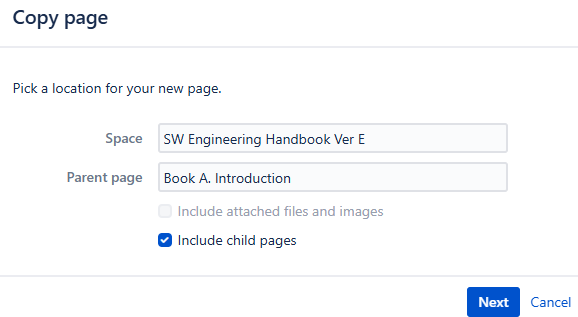 Start in SWEHBVD, and view the
 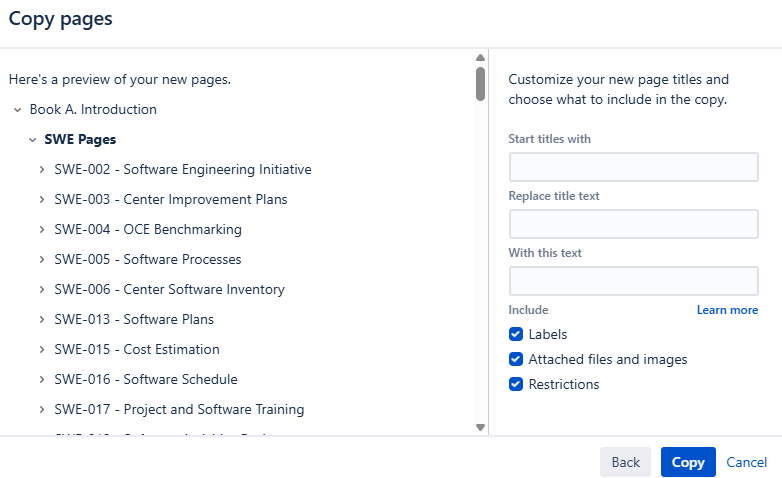 Copy pages knows that you are going to put the pages into a different space so it askes for more details on the copy.
 5. Page NamingWhen pages are copied over to SWEHBVE links will be copied as well. The question here is: "what space is the link pointing to when the page is copied to SWEHBVE?" Test will be made here and instructions will be developed, tested and documented here so they can be reliably used when the real copy of SWEHBVE is done. |