

 View this section on the website
 See edit history of this section
 Post feedback on this section

1. Introduction
This page is devoted to actions necessary to buildout the SWEHBVE version of the Handbook.
The checklist for building the new version is in SWEHBDOC - New Version of SWEHB.
2. Theme
2.1 Header And Footer Layout
The new theme will have the same layout except for the following:
- Header:
- New images for SWEHBVE
- Draft - has "DRAFT" in the image
- Production - "DRAFT" is removed from the image
- New buttons pointing to Top Level Pages in SWEHBVE
- New images for SWEHBVE
- Footer - No changes
The images are built in a PPT that is attached to the SWEHBVE - Book A. Introduction.
- The PPT where the images were built is "SWEHB Multiver Graphics.PPT"
- Draft banner is the image "SWEHBVE_DRAFT.jpg"
- Production banner is the image "SWEHBVE_banner.jpg"
2.1.2 DRAFT Image - SWEHBVE_draft.jpg"

2.1.2 Production Image - SWEHBVE_banner.jpg

2.2 Buttons in SWEHBVE
Buttons in the Header area of the theme match those in SWEHBVD except that they point to SWEHBVE and the appropriate Top Level Page in the new space. Buttons are in a theme code module "top.vm". IT manages the theme and makes changes in the "top.vm" module.
The buttons in SWEHBVE are the same as those in SWEHBD. The targets for the buttons are created in SWEHBVE under the home page. In the code, each button target is identified by its space and title. The code from SWEHBVD will be used in the SWEHBVE theme and only the space codes (SWEHBVD and SWEHBVE) will need to be changed. This was completed 9/5/2025.
2.3 Theme Promotion At New Version Release
When the SWEHBVE is promoted to be the "current version" the following changes will be made by IT:
- The SWEHBVD theme will be demoted to being the theme for only the SWEHBVD space
- The SWEHBVE theme will be promoted to being the Default Theme. This will make SWEHBVE show up on both the SWEHBVE and SITE spaces.
- All other versions of the handbook will continue to use their own custom theme.
2.4 Access to Other Versions
Every version has a "Book A. Introduction" page. On that page there is a tab 5 "Accessing other Versions of SWEHB" in this tab is a list of links to other version's Intro page. It looks like this one which is in SWEHBVD:
To access other versions of the Software Engineering Handbook use the links below:
- Click here to go back to the Software Engineering Handbook from NPR 7150.2A
- Click here to go back to the Software Engineering Handbook from NPR 7150.2B
- Click here to go back to the Software Engineering Handbook from NPR 7150.2C
- You are already in the Software Engineering and Software Assurance Handbook from NPR 7150.2D
- Click here to go back to the Software Engineering Handbook from NPR 7150.2E
The last bullet will need to be added for SWEHBVE in all of the Introduction pages, tab 5.
3. Top Level Pages
Some top level pages that will be moved into SWEHBVE manually. These are necessary to ensure that the buttons in the Header are working properly. A mass copy of the remaining pages will then be done.
3.1 First Set of TLP
- Book A. Introduction - this will become the anchor for the new version just like in SWEHBVD - Done, needs cleanup
- Page Sections - to fix Page Top Messages - Copy complete - needs cleanup
- B. Institutional Requirements - Copy complete -
- C. Project Software Requirements - Copy complete -
- D. Topics -Copy complete -
- E. Tools, References, and Terms - with children - Copy complete -
- Human Rated Requirements - Copy complete
- Label database - Copy complete -
- References Table - Copy complete -
- Tools Table - Copy complete -
3.1.1 - TLP Not Copied
These pages have not been copied yet due to ongoing updates in SWEHBVD. When the updates are minimized, these pages may be copied using the techniques in tab 4.3.
- SWE Pages - need children
- Topics Pages - need children
- Activity View - need children
- Protected Area - Cleanup before copying
4. Copy Instructions
Copy instructions will be developed, tested and documented here so they can be reliably used when the real copy of SWEHBVE is done.
4.1 Automatic Changes When Title Changes
Page Top Messages are in many pages including Top Level pages, all SWE and HR pages, and all Topic pages. To avoid manually going into each page to change it, use the following steps (this was done on the Intro page):
- copied "Page Sections" from VD to VE.
- In SWEHBVE Changed "2D" in Intro Page Top Message to "2E"
- Checked Intro page and found that the 2D was changed to 2E automatically in the Excerpt-Include macro at the top of the page.
- This technique worked for Major Page Message pages
- It should also work for SWE and Topics pages when they are copied over
4.2 Page Top Messages
Many pages will have an Excerpt-Include pointing to "SWEHBVD:2D-SWE Page Message" you will have to fix this in SWEHBVE pages by changing it to point to "2E-SWE Page Message". This takes the space key out (it is not needed in SWEHBVE space) and fixes the page name from "2D" to "2E".
4.3 Copy Large Collections Between Spaces
There is a very helpful feature in Confluence in the Copy command (on the dropdown menu of all pages. In this example, it is used to copy all of the SWEs in the SWEHBVD:SWE Pages to a new page in SWEHBVE.
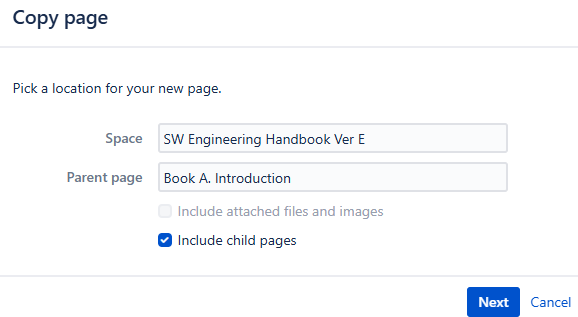 Start in SWEHBVD, and view the SWE Pages in a new window.
 - Start a copy command from the Dropdown Menu.
- The copy command starts by asking for a location for the new page.
- The initial space will come up as "SW Engineering Handbook Ver D", just change the "D" to "E"
- The Parent page can stay the same since "Book A. Introduction" is the home page for SWEHBVE
- Check the box to "Include child pages"
- Click Next
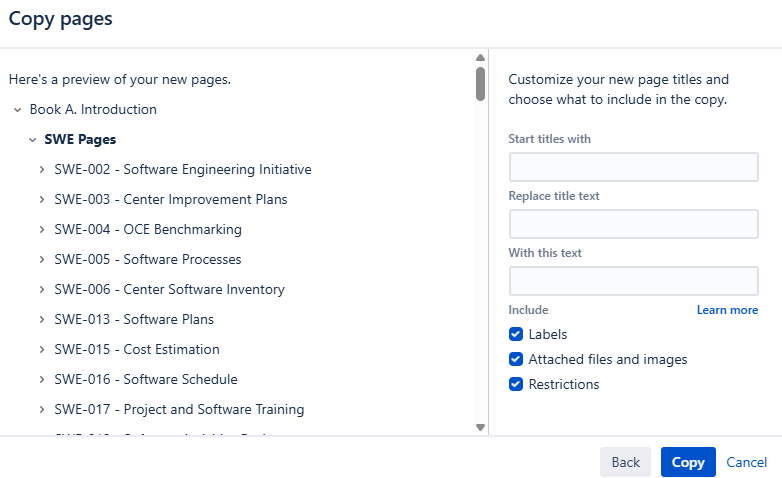 Copy pages knows that you are going to put the pages into a different space so it askes for more details on the copy.
 - It starts by showing you a pagetree for what the new pages will look like in the new space. In this case "SWE Pages" will be under "Book A. Introduction" and all the individual SWEs will be under "SWE Pages" This is exactly what we want.
- We don't want to make changes to the titles, so leave the area for Title customization empty.
- For the include section, leave all 3 checkboxes checked.
- Click "Copy" to start the process.
- You will see a "Progress" indicator that will report what is going on in the background. A Completion indicator will come up when the copy is complete.
- Check the SWEHBVE pagetree and note that there is a "SWE Pages" entry under "Book A. Introduction"
- Check to see that all the SWEs from SWEHBVD are copied into SWEHBVE
- Check to see that links to SWEs in C. Project Software Requirements are all there and show as links. Test a few to see that they work properly.
- Compare the "SWE Pages" from SWEHBVD and SWEHBVE to verify that all the links are working.
This same copy process can be used to:
- Copy SWEHBVD:D. Topics Pages to SWEHBVE:D. Topics Pages
- Copy SWEHBVD:Activity View to SWEHBVE:Activity View
5. Page Naming
When pages are copied over to SWEHBVE links will be copied as well. The question here is: "what space is the link pointing to when the page is copied to SWEHBVE?"
Test will be made here and instructions will be developed, tested and documented here so they can be reliably used when the real copy of SWEHBVE is done.

0 Comments